Connect CPC to a VGA display


I always wanted to connect my CPC to a VGA display, but haven’t found a good solution to do this. During the last weeks I searched through eBay (search for “CGA VGA converter”) and found a seller in Hong Kong (eBay name “chowhe_taiwan”), who sells a CGA to VGA converter for a very cheap price (I paid at that time around 27 EUR including shipment).

UPDATE: The seller does not exist anymore, but there are a lot of alternatives on other platforms. You can e.g. search on eBay for (“cga vga”) or order it from AliExpress (prices start at 13 EUR).

It also was advertised for arcade machines, so I thought that this device should work with a CPC, too.

cga_vga_converter

To sum it up, this are the features of the device:

  • Supports CGA / EGA and YUV signal input
  • Support the following VGA output resolutions: 640×480, 800×600, 1024×768, 1360×768
  • CGA / EGA signal auto scan (15k, 24k, 31k)
  • YUV signal auto scan (480i, 576i, 720i, 1080i, 480p, 576p, 720p, 1080p)
  • Chinese and english on screen display (default is chinese, but you will find the menu to change the language easily)
  • Position & zoom control

After two weeks the kit arrived and I had the time to have a look at it and it works really fine. It only has some problems with demos which intensively use hardware effects. Btw, the demo “Batman Forever” works fine with this converter (except the multi-colour picture :-(). I also tested some other demos which heavily used hardware effects and it seems that the converter works very good with them. Most of them work without any flaws.

To connect the device you have several options: you will find a connector on the left bottom side to directly connect the RGBS signal from the CPC to the converter, but I used the cable which was delivered with the device which is connected to the connector over the CGA 15pin SUB-D connector. The connection is really simple, but it depends on your CPC model of course.

This is the pinout of the connector cable:

Cable color Function
Red Red analogue signal
Green Green analogue signal
Blue Blue analogue signal
Grey Sync / RGB switching control
Yellow VSync (don’t connect this)
Black GND / Common


Connection to the Amstrad CPC (464, 664, 6128):

To connect the converter to the Amstrad CPC, you just have to connect each signal cable directly to the corresponding pin of the monitor connector of the CPC. Have a look at the pinout of the connector. I also added an image from my soldered connector, which might help you building your own connector.

Pin No. Signal Name Description
1 R Red analogue signal
2 G Green analogue signal
3 B Blue analogue signal
4 Sync RGB switching control
5 GND Common
6 Lum Luminance


Cpc_monitor_pinout cga_vga_converter_connector


Connection to the Amstrad Plus (464+, 6128+, GX4000):

The connection to the Plus is nearly the same, but you have a new pinout, because the Plus monitor connector contains two additional pins for audio output.

Pin No. Signal Name Description
1 Sync RGB switching control
2 G Green analogue signal
3 Lum Luminance
4 R Red analogue signal
5 B Blue analogue signal
6 L Left audio signal
7 R Right audio signal
8 GND Common

Plus_monitor_pinout

If you connected the wires correctly and switch on your CPC, you should see something similar to this image (I used a CRT in this test):

main_screen

And here are some screenshots which I took with my digicam of several demos:

demoizart

voyage_93

ultimate_megademo

After all I really like this device and it seems to work in most cases and I would definitively buy it again :-)!

Laufwerksriemen wechseln


This article is also available in english in the [[Changing the drive belt|CPC Wiki]].

Wer kennt das Problem nicht: Man möchte gerade sein Lieblingsspiel laden und bekommt vom CPC nur die banale “Disc Missing” Meldung zurück. Ist das Laufwerk defekt? Nein, meistens genügt es, den im Laufwerk befindlichen Antriebsriemen zu wechseln. Dies ist eine Schritt für Schritt Anleitung anhand eines CPC6128. Der Wechsel der Antriebsriemen bei den anderen CPCs bzw. dem DD1 erfolgt analog.
Laufwerksriemen wechseln

1.) Lösen der Schrauben am Gehäuse des CPCs. Hierbei werden alle Schrauben an der Unterseite und die beiden Schrauben an der Seite des CPCs entfernt. Der obere Teil des Gehäuses kann jetzt zur Seite geklappt werden (Achtung: denkt bitte daran, dass die Tastatur an der Platine des CPCs angeschlossen ist).

laufwerk-1

2.) Nachdem ihr den oberen Teil des Gehäuses entfernt habt, seht ihr das Innere des CPCs vor euch. Ihr könnt nun die beiden Schrauben an der linken Seite des Laufwerks lösen. Die beiden anderen Schrauben habt ihr bereits beim Lösen der Gehäuseschrauben entfernt.

laufwerk-2

3.) Ihr könnt nun das Laufwerk aufrecht hinstellen. Damit ihr gut weiterarbeiten könnt, müsst ihr das Kabel der Stromversorgung und das Datenkabel vom Laufwerk abziehen. Seid an dieser Stelle etwas vorsichtig, damit ihr keine Anschlüsse – speziell beim Datenkabel – verbiegt.

laufwerk-3

4.) Nachdem ihr das Laufwerk vom CPC getrennt habt, könnt ihr es umdrehen und die Schrauben, mit der die Platine befestigt ist, lösen. Auf der rechten Seite befinden sich ausserdem noch zwei weitere Steckverbinder (im Bild des vorigen Schrittes auch sichtbar), die auch entfernt werden müssen, damit ihr die Platine im nächsten Schritt einfach herausklappen könnt.

laufwerk-4

5.) Ihr könnt jetzt die Platine herausklappen. Die Platine ist an der Laufwerksblende etwas eingehakt, deshalb müsst ihr sie vorsichtig herausziehen.
Der Laufwerksriemen liegt jetzt frei und kann ganz einfach gewechselt werden. Um den CPC wieder zusammenzubauen, einfach die einzelnen Schritte rückwärts abarbeiten. Beim Zusammenbauen auf jeden Fall darauf achten, dass ihr keine Kabel einklemmt!

laufwerk-5

6.) Was? Ihr sucht Laufwerksriemen? Kein Problem. Schaut einfach mal bei eBay in der Schneider Kategorie vorbei. Hier gibt es immer wieder neue Angebote. Ansonsten hat Mr.AMS im Forum bereits die Nummer eines Ersatzriemens gepostet. Hier ist das entsprechende Typenschild:

lwrkoenig

Dec 112010
 

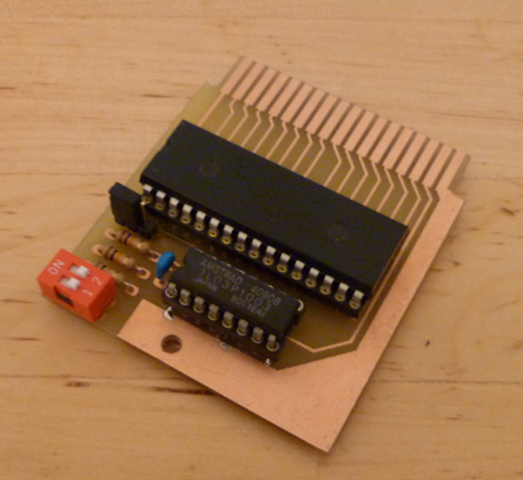
Bryce finished another hardware project, this time for the Amstrad Plus series. It is a multi cartridge, which contains a 512 KB EPROM or Flash-ROM on which you can place 4 128 KB ROMs. You can use the DIP switches on the cartridge to select which of the four ROMs shall be used by the CPC. As always you can find more information about the cartridge and the board layout in the [[Multi Cartridge|Multi Cartridge]] article in the CPC Wiki. The project can be discussed here.

NOTE: You will still need a ACID protection chip in this cartridge.
Multi_Cartridge

Oct 172010
 

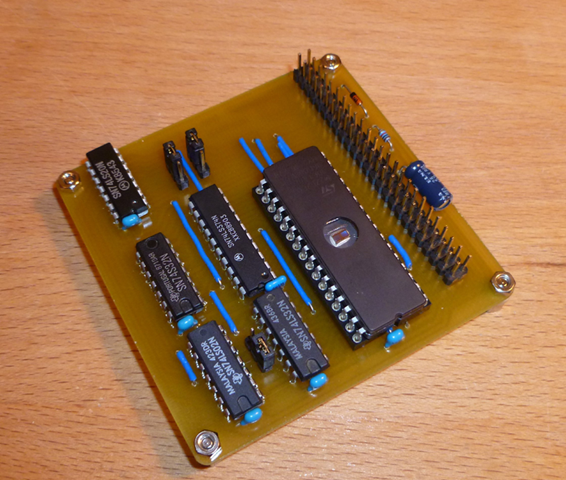
Bryce released another great hardware project for the CPC. This time it is a ROM extension board which uses one big EPROM (1 MBit or 2 MBit) to store your ROMs instead of using small 16kb EPROMs, which are hard to find nowadays. With an 1 MBit EPROM you can use 8 16kb ROMs and with an 2 MBit you can use 16 16kb ROMs.
This is an DIY project, which means, that Bryce won’t build a batch of them, but you can get all files (schematics, board) and a description of it from the [[MegaROM]] article in the CPCWiki. You can discuss this project in this thread of the CPCWiki board.

MegaROM